
HELP
Keep a kitchen on your home screen
A kitchen's menu is an ordinary web page, so there is nothing to download and nothing to sign up for. If you order from the same cook often, you can put her menu on your home screen and it opens like any other app: full screen, no address bar, one tap from wherever your apps live.
Four steps on an iPhone, in Safari. The pictures below are drawings of the screens, not a real phone.
-
01
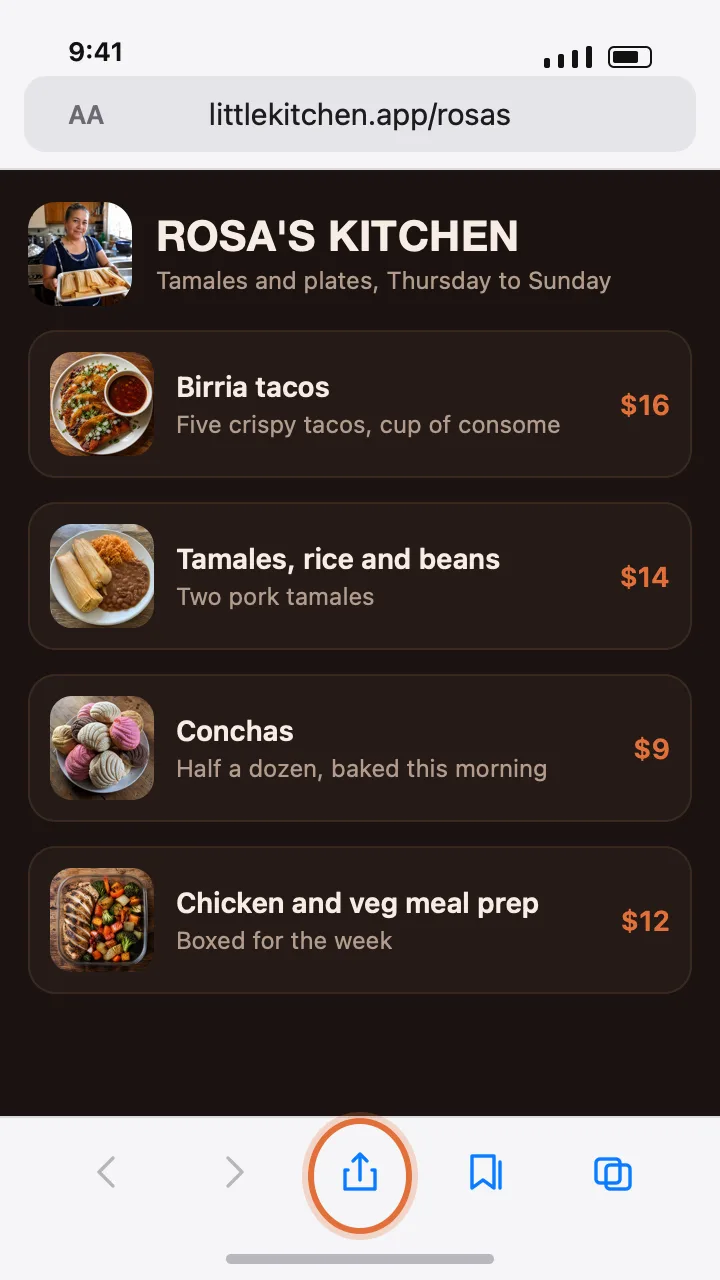
Open the kitchen's link in Safari
Then tap the share button in the bar at the bottom: the square with an arrow coming out of the top of it.
-
02
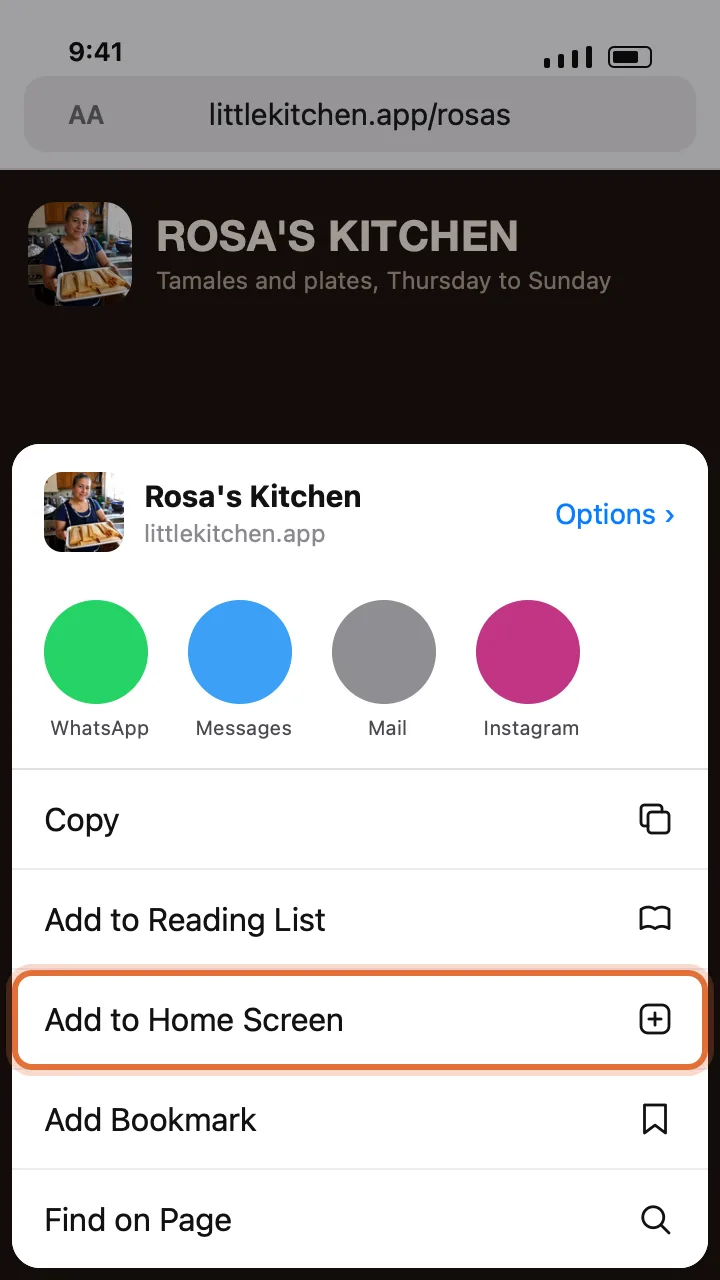
Choose Add to Home Screen
It is in the list under the row of apps. You may have to scroll the list a little way to see it.
-
03
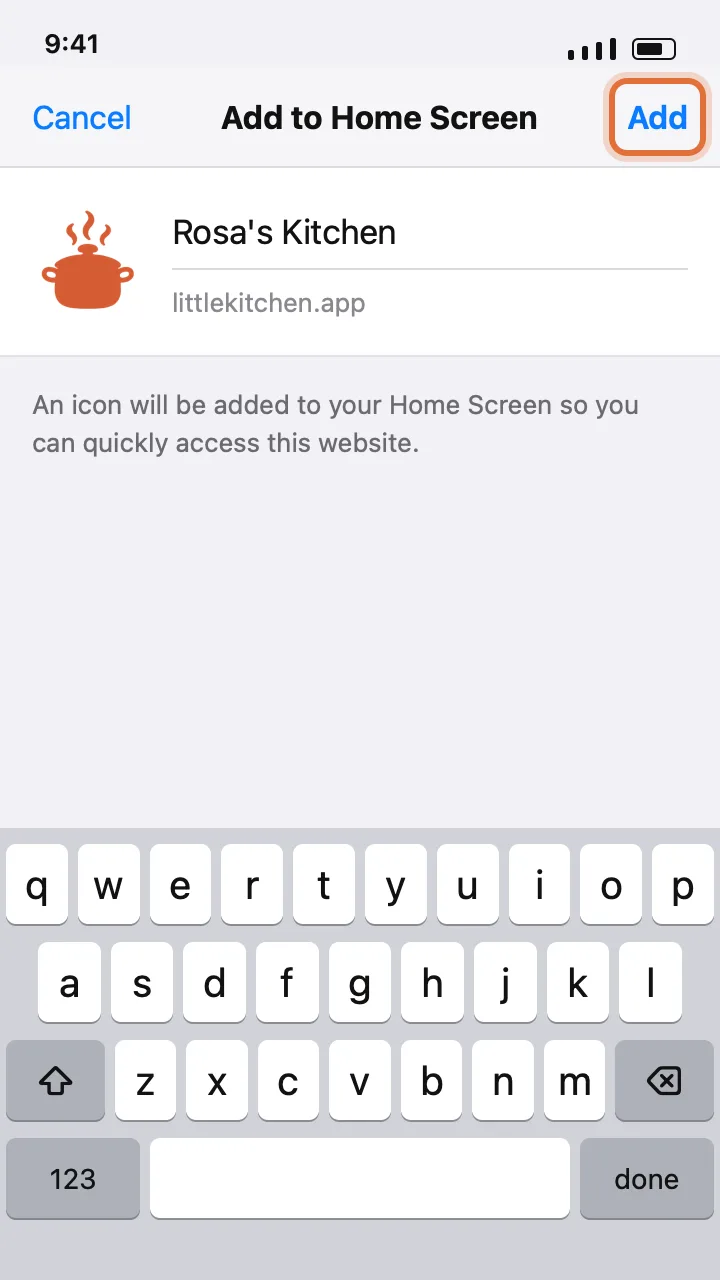
Name it, then tap Add
It will suggest the kitchen's name. Change it if you want, then tap Add in the top right.
-
04
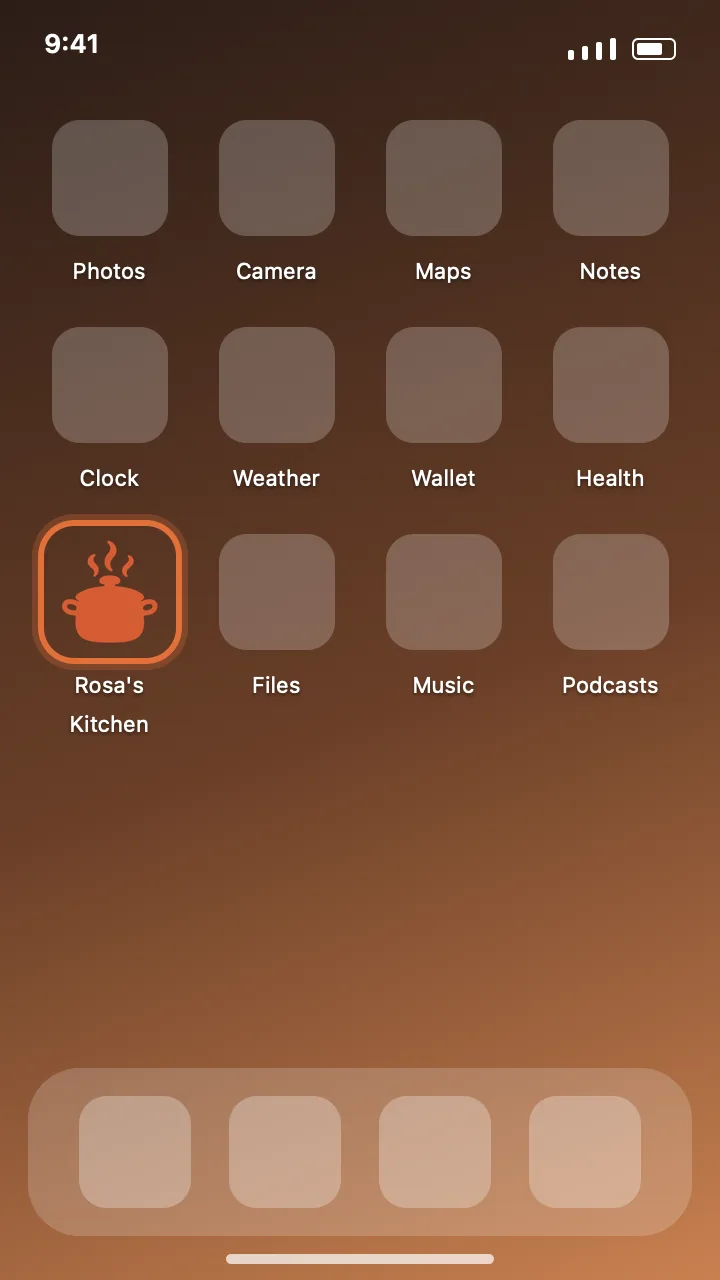
That is it
The kitchen is on your home screen. Tap it and her menu opens full screen, with today's food and today's hours.
On an Android phone
Chrome does the same thing from its three dot menu, where it is called Add to Home screen or Install app depending on the version. Some phones offer it on their own as a bar at the bottom of the page.
A few things worth knowing
- It is the kitchen's menu you are keeping, not an app. It updates itself, so what you see is whatever she is cooking today.
- Nothing is installed and nothing runs in the background. Delete the icon the way you delete any other one.
- You do not need an account, before or after. Ordering still takes a name and a number and nothing else.